Is AI Art Safe for Kids? A Parent's Honest Guide (2026)
Yes — AI art is safe for kids when the app is built well. Before downloading, vet three things: how the app handles your child’s drawings (kept or deleted?), what the AI can generate (only transforming their drawing, not open-ended prompts), and whether it’s ad-free with purchases behind a parental gate. A safe app is rated 4+ and explains all this.
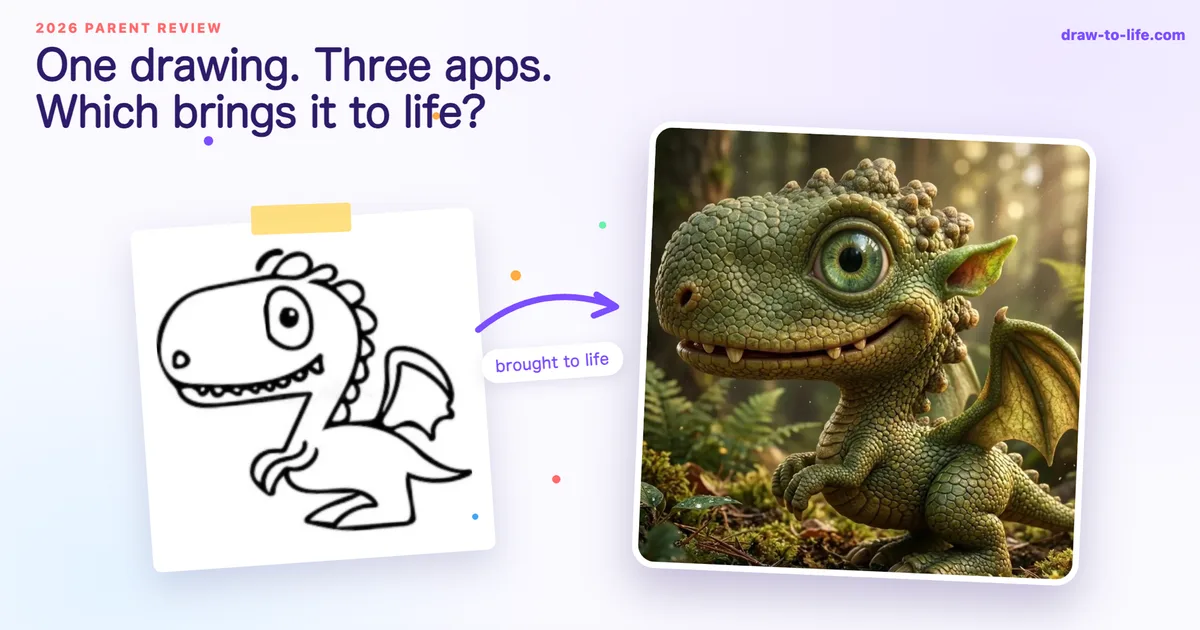
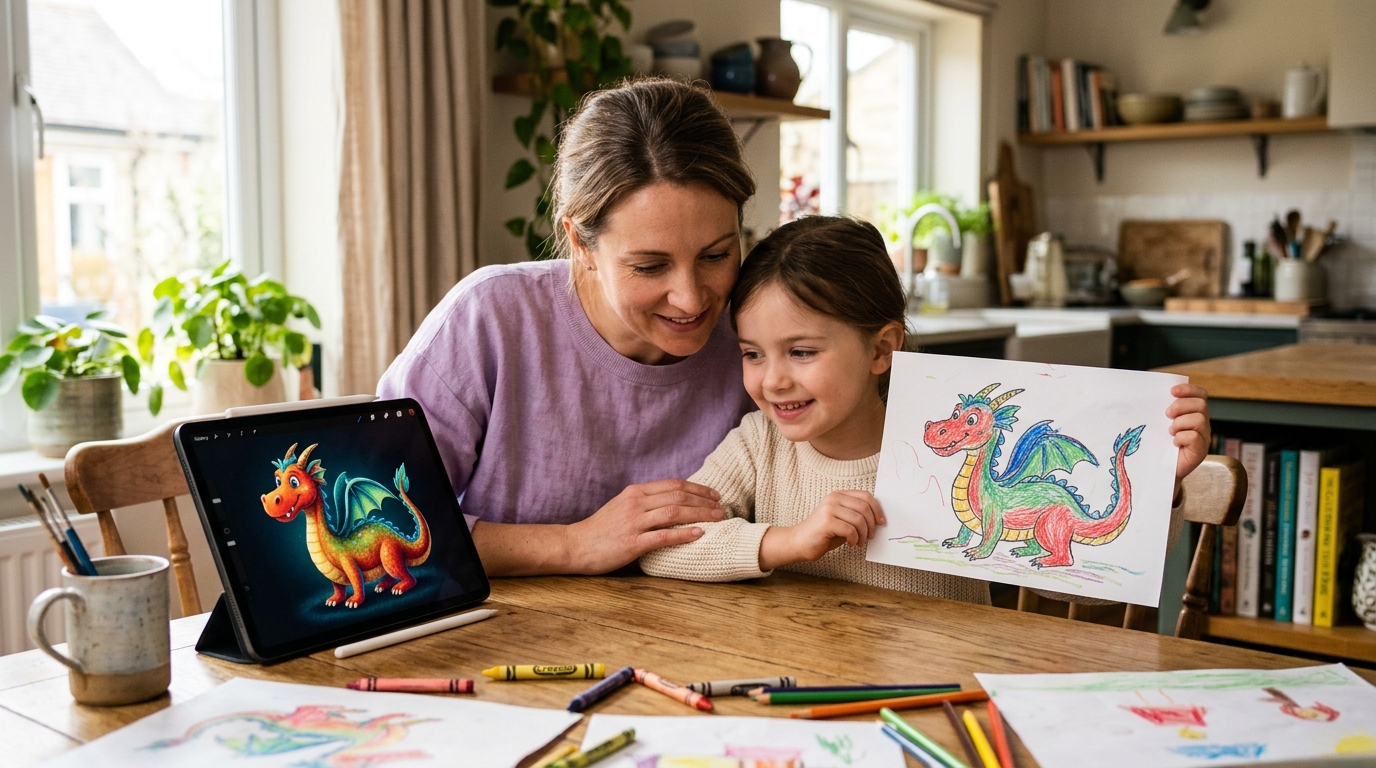
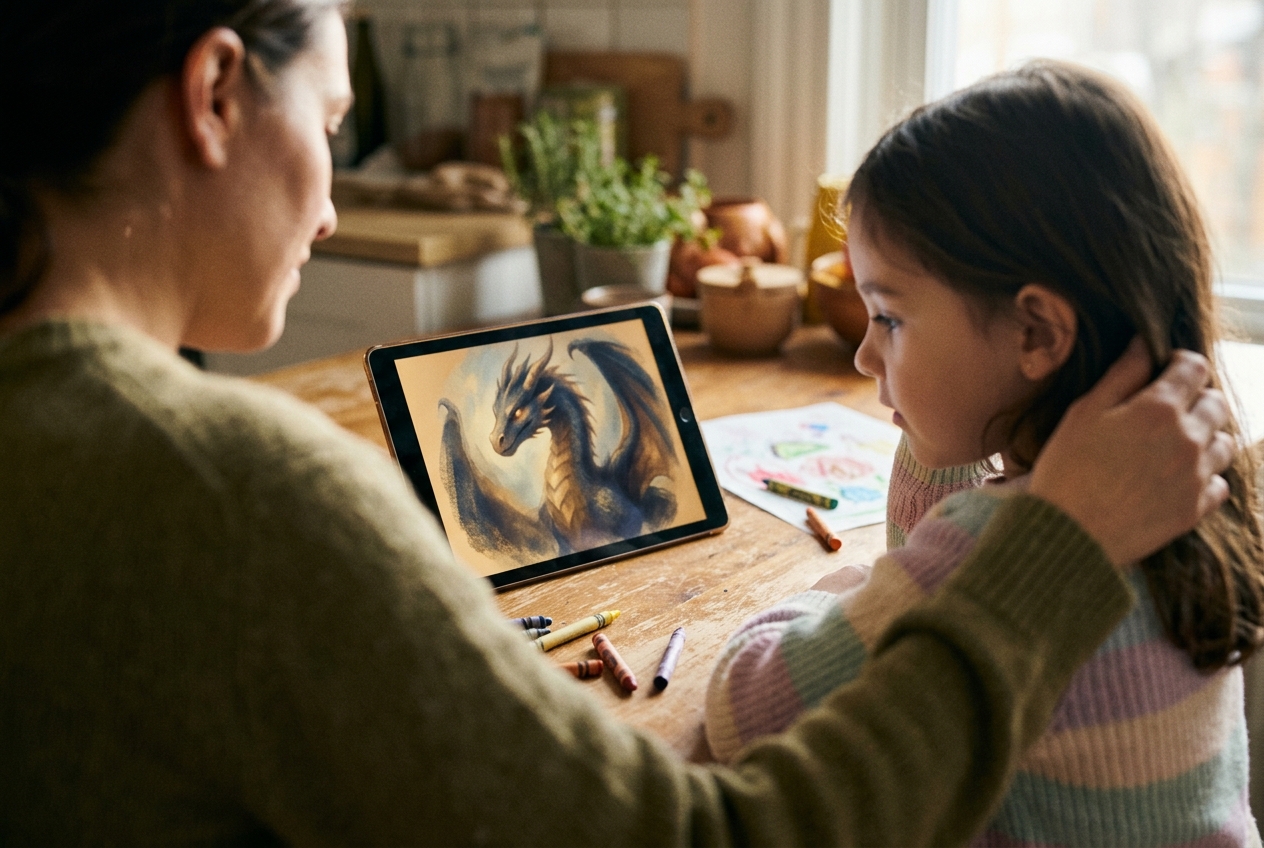
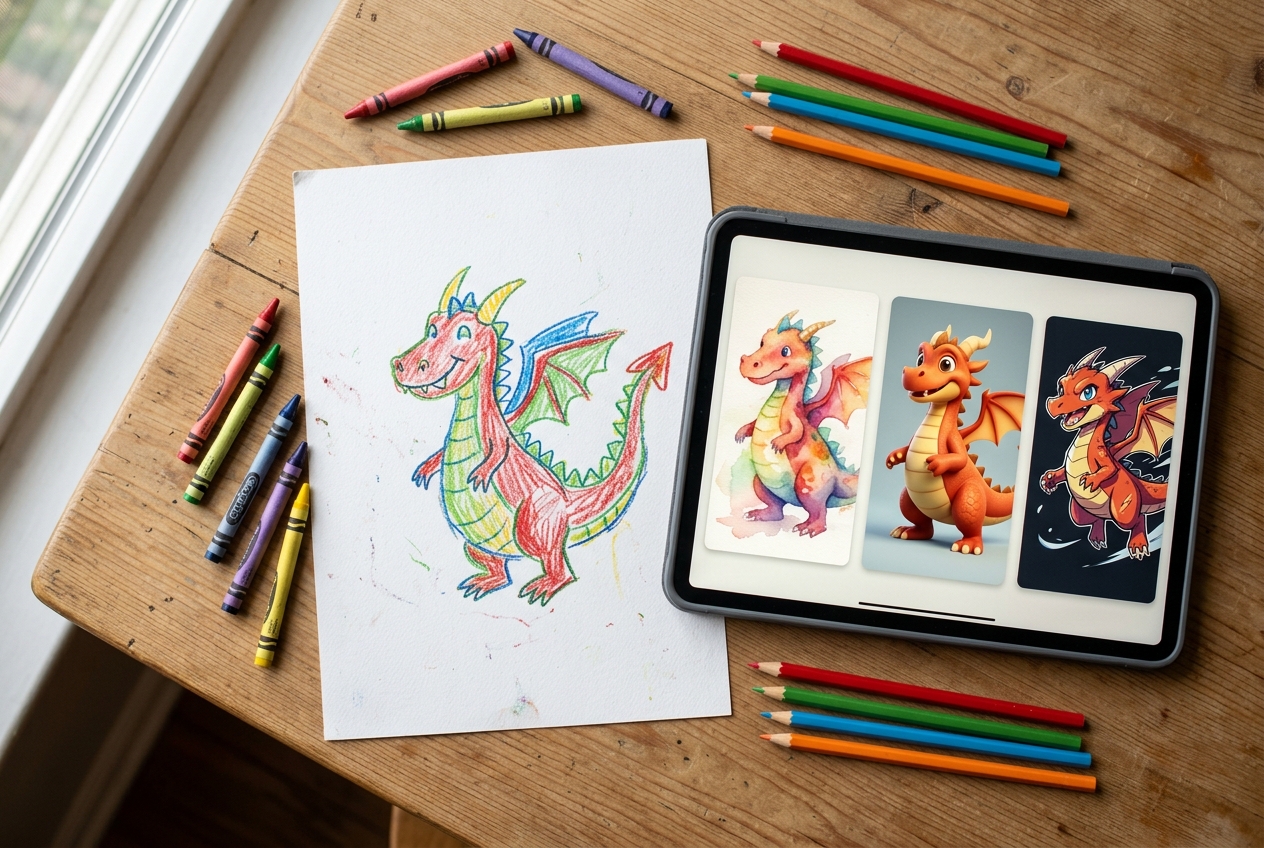
It’s a Tuesday evening. Your seven-year-old has been quietly absorbed in a tablet for ten minutes, and when you finally peer over her shoulder, she’s beaming at a polished, glowing version of the dragon she drew in crayon at the kitchen table. She loves it. You should be delighted. But somewhere underneath the warmth, a small, unfamiliar question pings at the back of your mind: where did that image come from, and where did her drawing just go?
That tiny pause — the moment between the child’s joy and the parent’s check-in — is the right instinct. AI art for kids is a genuinely lovely use of technology when it’s built well, and a quietly worrying one when it isn’t. The good news is that you don’t need a computer science degree to tell the difference. You need a short list of the right questions, asked before you let the app onto your child’s device.
This guide is that list. We’ll cover what “safe” actually means in this context, the seven things that genuinely matter, and a checklist you can take into the App Store the next time your child asks for “the dragon app her friend has.”
Why “Is AI art safe for kids?” feels harder than it should
Parents have spent the past decade getting fluent in social media risk, screen time research, and child-data privacy. AI is the new kid on that block, and most of the public conversation around AI safety has been aimed at adults — chatbots, deepfakes, copyright. Very little of it has translated into plain-English guidance for the parent of a five-year-old who just wants to see her crayon octopus turned into a watercolour.
The result is a slightly muddled feeling. AI art apps are everywhere on the App Store and Play Store, often with cheerful, child-coded marketing — but the underlying technology can vary wildly. Two apps that look almost identical from the outside can sit at opposite ends of the safety spectrum. One might process images entirely on-device, never store anything, and serve no ads. Another might upload every drawing to a third-party server, train its models on what your child made, and quietly flash “upgrade now” prompts at a six-year-old. From the outside, you can’t tell.
So the real question isn’t “is AI art safe for kids?” in the abstract. It’s: how do I vet this particular app, and what should I be looking for?
What “safe” actually means, in three layers
Before the checklist, it helps to break “safe” into the three layers that matter for AI art apps. Almost every meaningful concern slots into one of these.
Data and privacy. What happens to your child’s drawing after they tap transform? Does the image stay on the device, or is it uploaded? Does the company keep it, train future models on it, or share it with third parties? Is the app legally compliant with COPPA in the US and GDPR-K in the UK and EU?
Content. What can the AI actually generate? In a well-built kids’ app, the model is constrained to transform what the child drew — same subject, same composition, just rendered in a different artistic style. In a poorly built one, the AI can be prompted (or accidentally produce) something the child shouldn’t see.
Commercial design. This is the one most parents underestimate. A “free” app aimed at children can be perfectly safe in terms of privacy and content, and still expose your child to ads, pressure-tactic in-app purchases, and engagement loops engineered to keep them on the device long after they wanted to stop. For more on the difference between this and the kind of screen time that actually builds skills, see our guide to creative screen time for kids.
If an app gets all three layers right, it’s safe. If it cuts corners on any one of them, it’s worth a closer look.
Seven things that actually matter
Here is what to actually check, in roughly the order of how likely each one is to bite you.
1. Where the drawing goes after the transformation
Find the privacy policy and search for the words “retain”, “store”, “training”, and “third party”. Good kids’ apps either process images on-device or upload them, transform them, and immediately delete the source. A red flag is any wording that says the company keeps drawings indefinitely, uses them to train models, or shares them with unspecified “partners”.
2. Whether the app is built for children — legally
In the App Store, look at the age rating and the data-collection summary at the bottom of the listing. An app designed for children aged 3–8 should be rated 4+, declare minimal data collection, and ideally state that no data is “linked to you.” On Google Play, look for the “Designed for Families” badge. These aren’t cast-iron guarantees, but their absence is a real signal.
3. What the AI is allowed to generate
This one is invisible from the listing, so you have to test it. Hand the app to your child, or sit beside them, and try a few drawings. A safe AI art app will only transform what the child has drawn — turning a dragon into a polished dragon, a cat into a watercolour cat. It should not let a child type free-form prompts that produce arbitrary new images, and it should not produce anything off-topic, scary, or unsuitable. If the app accepts open-ended text prompts from a child, treat it as an adult tool that happens to have been marketed to kids.
4. Ads, in-app purchases, and dark patterns
Open the app yourself first. Watch for ads — especially video ads or ads that link out to other apps. Watch for pop-ups offering subscriptions, “premium” upgrades, or bonus features after every action. A child can’t meaningfully consent to a subscription, and the App Store’s age rating doesn’t always catch how aggressive the prompts are inside the app. The cleanest kids’ AI art apps either charge a clear, parent-facing price up front or offer a simple, ad-free free tier with any optional features behind a single subscription that sits behind a parental gate.
5. Public sharing and social features
Some AI art apps include feeds, galleries, or share-to-social features. These are not inherently bad, but for ages 3–8 they introduce risks that aren’t worth it: stranger contact, public exposure of a child’s drawings, comments, and a sudden pivot from “creative tool” to “social product.” For young children, the safest setting is one where everything stays inside the family — drawings can be saved to the camera roll or sent in a parent’s text thread, but nothing is published anywhere by default.
6. Whether the app respects screen time
A well-designed kids’ app has a natural stopping point. The child draws something, the AI transforms it, they admire it, they’re done — and the app doesn’t try to drag them back in with auto-playing videos, daily streaks, or notification chains. If the app uses the same engagement tricks as social platforms, it’s borrowing the wrong playbook.
7. Whether you can see what your child made
Healthy AI art apps make it easy for a parent to look at the gallery, save images to a shared family location, and stay aware of what’s being created. If an app makes it hard to find or export your child’s work, you’ve effectively handed your child a creative tool you can’t see — which is the opposite of what most parents want.
The eight-question checklist
Take this into the App Store before you tap Get. If the answer to any of these is “no” or “I can’t tell,” that’s not necessarily a deal-breaker — but it’s a reason to look harder.
- Is the app rated 4+ (or “Designed for Families” on Android)?
- Does the privacy policy clearly state that children’s drawings are not used to train AI models?
- Are images either processed on-device or deleted shortly after transformation?
- Is the app free of third-party advertising?
- Are in-app purchases gated behind a parental check, not pushed at the child?
- Does the AI only transform what the child drew, rather than accepting open-ended text prompts?
- Is public sharing off by default — or, ideally, not a feature at all?
- Can you, as a parent, easily see and save everything your child has made?
A well-built kids’ AI art app — DrawToLife is built around exactly this list, but you should hold every app to the same standard — will tick all eight boxes and explain how on its website. If a company can’t or won’t answer these, that’s also an answer.
Red flags and green flags at a glance
If you’re scanning quickly, these are the signals that matter most.
Green flags: a 4+ rating, a plain-English privacy summary, on-device or short-lived image processing, no ads, a single visible subscription option, and a feature set that quietly ends with “your child’s drawing, transformed.”
Red flags: text-prompt inputs the child can type into freely, social feeds, ad-supported “free” tiers, vague language about “improving our services” in the privacy policy, and pop-ups designed to nag the child rather than the parent.
The bigger picture
It’s worth saying clearly: AI art for kids isn’t a trojan horse. Used well, it’s one of the most genuinely creative things a child can do on a screen — closer to a paintbrush than a video feed, and with real, research-backed benefits for confidence and creative identity. We’ve written more about that side of the story in how AI helps kids express their creativity. The point of the safety conversation isn’t to scare parents off the category; it’s to give you the tools to pick the right app — once — and then forget about it, because the one your child uses is the one you’ve already vetted. If you’re at the choosing stage now, our roundup of the 7 best apps that bring kids’ drawings to life applies exactly this checklist to each one.
Your seven-year-old’s dragon deserves to be turned into something glorious. So does the next one, and the one after that. And the very best thing about doing the safety work up front is that you only have to do it properly once. Pick well, and the rest is just crayon, screen, and a small person grinning at what they made.